

Creating a new contract
Navigation
Go to:
Contracts
Click the button to create a new contract. The configuration window for the new contract will open.
Steps
Upload document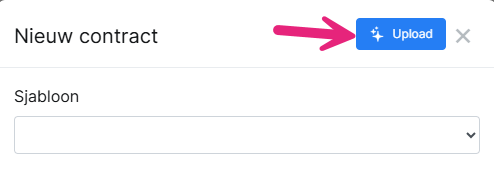
Click Upload at the top right of the configuration window (to the left of the cross). Select the contract document to be analysed. nextAI processes the document and extracts the available data points.
Check extracted data
After processing, the data extracted by nextAI is automatically filled into the corresponding fields of the contract form. This may be only the fields on the contract creation screen or the full detail card for an existing contract. Check the proposed data carefully.
Process with extra detail (image-based PDFs)
If the extracted data is incomplete or incorrect after the first processing, it is possible to reprocess with a higher processing quality. After completing the initial processing, the option Process with extra detail is available for this purpose.
Confirm or correct data
Next to each data point on the right is a tick box to indicate whether the proposed data should be adopted in the file. You can of course still manually adjust this data if it was partly incorrect or simply needs to be worded differently.
Save contract or automatic saving of changes
Save the contract after checking and correcting the data. The filled-in fields are saved in the database. If it was an existing contract, all confirmed data points will automatically be updated in the file.