Tracking the progress of contract signing. In Contracts > Contracts the columns Workflow status and In workflow at show whether a contract is approved or rejected and which step it has reached. Per contract, the Contract Signing tab shows detailed status per workflow step.
Track workflow statuses via the contracts overview
- Navigate to Contracts > Contracts.
- In this view, you can use the following two columns to track workflow progress.
Workflow status: Shows if a contract has been approved, rejected or is still in a workflow
In workflow at: Shows at which step the workflow currently is
Track detailed workflow status info
- Navigate to Contracts > Contracts > Select contract > Details > Contract Signing.
- This tab will show you detailed information about the workflow status.
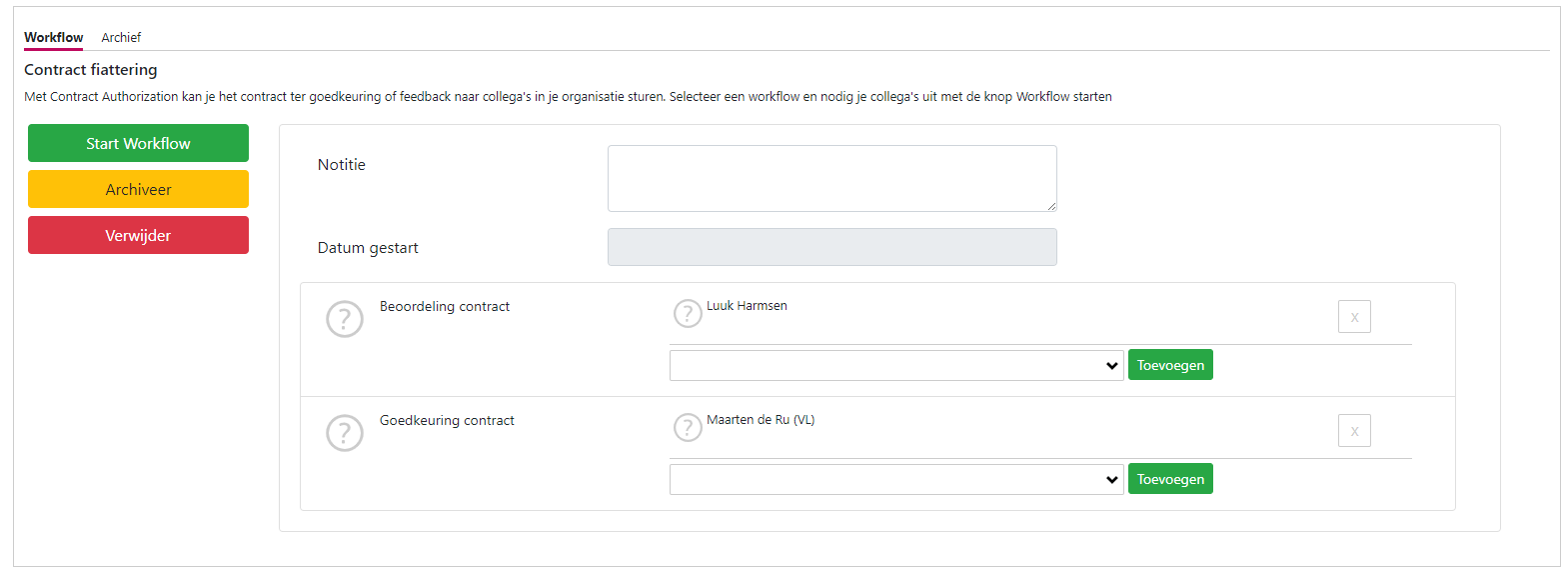
The table below explains a few fields in this overview.
| Start date
|
The start date of the workflow. |
| [Workflow step] Green approval sign |
Contract approved |
| [Workflow step] Grey question mark |
No response yet |
| [Workflow step] Red cross |
Contract rejected |
Next to each status icon, the date and time of approval/rejection is shown.
The workflow can be stopped by using the yellow 'Stop workflow' button. After the workflow is stopped, this button changes to a 'Delete workflow' button. This allows the workflow to be completely removed from the contract.

