

1. Purpose of the Terms analysis
The terms analysis is the nextAI functionality within Contract Management that automatically compares an uploaded contract document with the internally established company and procurement terms. These can be terms recorded per document type because a contract file can contain multiple types of documents besides the actual contract piece, such as NDAs, DPAs, and SLAs. For each term, the analysis shows whether the clause is present in the document, matches the standard, is positively deviant, or negatively deviates.
This is very relevant because organisations often rely on internal expertise to assess incoming terms from suppliers that need to be accepted. By using nextAI for an initial check, purchasers and contract managers can independently identify and discuss the main points that deviate with suppliers before calling on often scarce internal expertise.
The functionality consists of two parts:
- Management - recording the accepted terms, term types, document types, and exceptions in the Admin module.
- Analysis - performing a comparison based on an uploaded document and viewing the results. This analysis can be performed without creating a contract in the system because this process often takes place during contracting.
2. Access and permissions
The Terms analysis button in the contract overview is only visible and accessible to users with the role Contract Management Moderator or Contract Manager.
The management of the terms used to benchmark against the uploaded document takes place in the admin module and is reserved for administrators with access to the admin environment.
3. Managing terms in Admin
Before a Terms analysis can be performed, the company terms must be recorded in Admin. This is a one-time setup and can be expanded or adjusted as needed thereafter.
3.1 Navigation
Go to:
Admin > Contracts Settings > Tables > Analysis of the general terms and conditions
Four subtabs are available here:
- General terms and conditions - the generally accepted terms to be compared
- Exceptions - exceptions to terms for specific categories or suppliers
- Term types - categorisation of terms
- Document Type - types of contract documents (e.g., NDA, DPA, Master Agreement)
3.2 Managing document types
Document types are used to link terms to specific types of contract documents.
During an analysis, you can then filter by document type so that only the relevant terms are included.
Go to the Document Type tab and click Add to add a new document type.
Enter the name and click Add to save.
3.3 Managing term types
Term types are categories created by the administrator to group terms, such as "Financial", "Compliance", "Price", or "Risk".
Go to the Term types tab and click Add to add a new type. Enter the name and click Add to save.
3.4 Adding a term
Go to the General terms and conditions tab and click Add. The form "Add a term" opens with the following fields:
-
Name - the name of the term.
- Description - a description of what the term entails and what nextAI should compare in the document. Maximum 255 characters.
- Numerical value - a numerical standard against which the found value is tested, if applicable (e.g., number of days or an amount).
-
Preferred method - the desired comparison direction. Choices are:
- Not relevant - if it is a textually described term.
- Exact match - the found value must exactly match the specified numerical value.
- More - the found value may be higher than the standard.
- Less - the found value must be lower than the standard.
- Document Types - linked to one or more document types. The term only applies when an analysis is filtered on one of the linked document types.
- Term type - linked to a term type for categorisation.
- Companies - linked to one or more internal entities/companies. The term only applies when an analysis is filtered on one of the linked entities.
- Categories - linked to one or more categories from the standard category structure. The term only applies when an analysis is filtered on one of the linked categories.
Click Add to save the term.
3.5 Adding an exception
Exceptions make it possible to set a different standard for an existing term for a specific category and/or supplier. The term is still included in the analysis but tested against the different standard.
Go to the Exceptions tab and click Add. The form "Add exception" opens with the following fields:
- Term - select the existing term to which the exception applies.
- Name - the name of the exception.
- Description - a description of the exception. Maximum 255 characters.
- Numerical value - the differing numerical standard for this exception if applicable.
-
Preferred method - the desired comparison direction. Choices are:
- Not relevant - if it is a textually described term.
- Exact match - the found value must exactly match the specified numerical value.
- More - the found value may be higher than the standard.
- Less - the found value must be lower than the standard.
- Categories - the category(ies) for which the exception applies.
- Supplier - the supplier(s) for which the exception applies.
Click Add to save the exception.
ℹ️
For IT contracts, an exception applies where 45 days is also acceptable, with Preferred method "More". IT contract terms that use, for example, 50 days are now considered positive; the standard of 60 days does not apply, and the value 50 is more than 45 days.
4. Performing a Terms analysis
4.1 Navigation
Go to:
Contracts
The Terms analysis button is visible in the contract overview, to the left of the New contract button.
4.2 Steps
1. Start analysis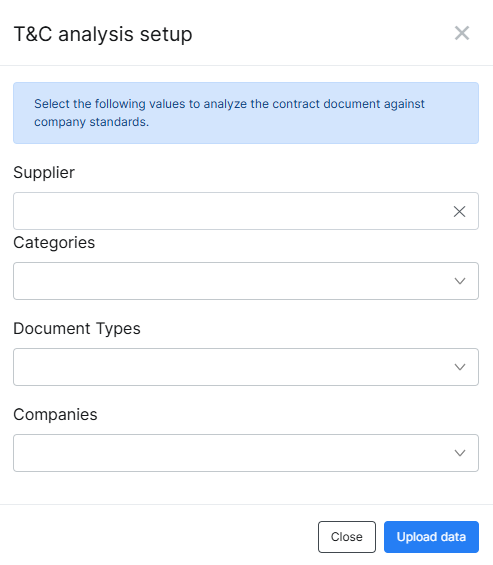
Click Terms analysis. The window "Terms analysis settings" opens with the instruction text: "Select the following values to analyse the contract document based on the company standards."
Set the desired filters. All filters are optional:
- Supplier - limit the analysis to terms and exceptions linked to this supplier. These are all generally applicable terms based on the filter with any exceptions for that supplier.
- Categories - limit the analysis to terms and exceptions linked to these categories. These are all generally applicable terms based on the filter with any exceptions for those category(ies).
- Document Types - limit the analysis to terms linked to this document type. These are all generally applicable terms without specific type linkage and the terms specific to that document type.
- Companies - limit the analysis to terms linked to this company entity. These are all generally applicable terms without specific company linkage and the terms specific to the chosen entity.
If no filter is selected, all active terms are included in the analysis.
2. Insight into applicable terms and upload document
After selecting the correct filters, the system will display a list of all terms that will be used in the analysis. This is available for verification before uploading the document to be analysed.
Click Upload data. Select the contract document to be analysed. nextAI processes the document and compares the content with the selected terms.
3. View results
After processing, the results page "Terms & Conditions Analysis - Result" is shown.
5. Interpreting results
5.1 Filter view
At the top of the results page, there are four filter buttons showing the total number of findings per category. Click a filter button to view only the results of that category:
- Positive - the found value meets or is more favourable than the standard.
- Negative - the found value does not meet the standard.
- Matching - the found value exactly matches the standard.
- Not Found - the term was not found in the document.
5.2 Result per term
The following data are shown per term:
- Standard term - the description of the internally established standard.
- Found in Document - the text that nextAI found in the document for this term and that was used to determine the judgement and status of the term.
- Source - the reference to the article or location in the document where the clause was found.
- Status - the judgement at the top right per term (Positive / Negative / Matching / Not Found).
5.3 PDF viewer
On the left of the results page, the uploaded document can be viewed via the built-in PDF viewer. This makes it possible to view the found clauses directly in context.
6. Best practices
- Set terms as specifically as possible to obtain accurate results.
- Use Document Types and Companies to focus the analysis on the correct terms.
- Use exceptions for categories or suppliers where different standards apply, instead of creating separate terms.
- Always manually check all results - nextAI supports the assessment but does not replace it.
- Encrypted (password-protected) PDFs and PDFs with an Adobe Acrobat Sign agreement are not supported.
7. Summary
- The Terms analysis compares an uploaded contract document with internally established company terms.
- Terms, term types, document types, and exceptions are managed via Admin > Contracts settings > Tables > Analysis of the general terms and conditions.
- Exceptions make it possible to set different standards for specific categories or suppliers.
- The analysis is started via the Terms analysis button in the contract overview, available to users with the role Contract Management Moderator or Contract Manager.
- The results page shows per term the judgement (Positive, Negative, Matching, or Not Found), the found text, and the source reference, with the uploaded document in a built-in PDF viewer.