

1. Purpose of Contract Capture
Contract Capture is the nextAI functionality within Contract Management that automatically analyses contract documents and extracts contract data. After uploading a contract document (PDF), nextAI extracts relevant data points – such as contract name, dates, notice periods and other relevant data points from the contract – and automatically populates these in the contract form where the contract fields are located. The user reviews the extracted data and confirms or adjusts it before the contract is saved.
In addition to data extraction, nextAI offers the possibility to compare an uploaded contract document with the internally registered standard accepted purchasing terms and conditions via a Terms analysis. The results provide insight into clauses, risks and deviations compared to these own terms and conditions. Please see the other Help Centre article for this.
Contract Capture is intended for contract administrators and other users who create new contracts and edit or manage existing contracts within Contract Management. It ensures greater consistency in filling contract files, increases the amount of data recorded in the system as manual actions are drastically reduced, and if the functions within Contract Management are separated within an organisation, it prevents data loss when registering the agreement.
2. Access and permissions
No additional permissions or roles are required to use Contract Capture (data extraction when creating or editing a contract). The functionality is available to all users who have access to Contract Management and can already create and/or edit contracts via the Contract Management Moderator user role. nextAI for Contract Management must be activated in the environment.
Navigation path: Contracts module, create new contract
3. Functionality overview
3.1 Data extraction when creating a new contract
When creating a new contract, a contract document can be uploaded. nextAI analyses the document and automatically extracts the data points displayed on the contract creation screen based on preset prompts. The extracted data is filled in the contract form for review, after which the user can confirm or manually correct it.
3.2 Data extraction for an existing contract
For an already created contract, you can also click the nextAI button in the 'Details' tab. However, you cannot upload a new document here but can choose from the PDF documents already uploaded as attachments to the contract to start data extraction. In this case, nextAI will analyse not only the data fields on the creation screen but all data fields with a prompt from the details tab. In addition to the extracted data, the system also shows the currently filled-in value in the contract file so you can immediately see if the data needs to be adjusted. This can be confirmed with a single click.
3.3 Supported file types
nextAI supports the following file types for processing:
- PDF (text-based and image-based)
ℹ️
4. Prompts and field configuration
There are two types of fields in a contract file: Standard ISPnext fields and Custom client fields. The ISPnext contract fields that are subject to data extraction have a standard prompt that you do not need to specify yourself but can adjust if necessary. Custom client fields must always be provided with a prompt by the client to include that field in the analysis.
⚠️
4.1 System prompts and client prompts
One prompt can be set for both types of contract fields. There is a distinction between system prompts and client prompts:
- System prompts are set by ISPnext for standard contract fields but can be adjusted by the client.
- Client prompts must be set by the client for free fields (custom client fields).
4.2 Setting a prompt
Navigate to:
Admin > Contract Settings > Contract Settings > Contract Custom Fields
Admin > Contract Settings > Contract Settings > Personalisation
Select the desired field and open it (this can be a standard field or a custom field depending on the navigation route chosen as described above). In the configuration window of an individual field there is an AI Prompt section. Enter the prompt here that nextAI should use for this field.
If it is a standard ISPnext field, the prompt that will be used by default is shown below the AI prompt field so it can be supplemented or adjusted if needed.
ℹ️
Example of a client prompt for the field indexing information:
Find any information related to the agreed upon indexation terms in the contract. Make a summary of at least the described term, timeline and any mentioned exclusions or abnormalities. If indexation is not mentioned return: Not mentioned in contractual document. If the document states that indexation is explicitly excluded return: Indexation is not permitted.
After entering the prompt and clicking outside the text box, the field briefly turns green – this confirms that the content has been saved.
⚠️
5. Creating a new contract with Contract Capture
5.1 Navigation
Go to:
Contracts
Click the button to create a new contract. The configuration window for the new contract will open.
5.2 Steps
5.2.1 - Upload document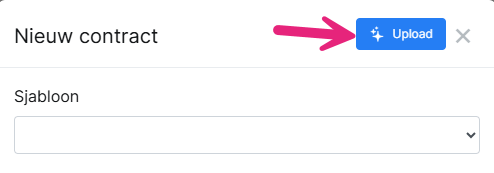
Click Upload at the top right of the configuration window (to the left of the cross). Select the contract document to be analysed. nextAI processes the document and extracts the available data points.
5.2.2 - Check extracted data
After processing, the data extracted by nextAI is automatically filled into the corresponding fields of the contract form. This may be only the fields on the contract creation screen or the full detail card for an existing contract. Check the proposed data carefully.
5.2.2.1 - Process with extra detail (image-based PDFs)
If the extracted data is incomplete or incorrect after the first processing, it is possible to reprocess with a higher processing quality. After completing the initial processing, the option Process with extra detail is available for this purpose.
5.2.3 - Confirm or correct data
Next to each data point on the right is a tick box to indicate whether the proposed data should be adopted in the file. You can of course still manually adjust this data if it was partly incorrect or simply needs to be worded differently.
5.2.4 - Save contract or automatic saving of changes
Save the contract after checking and correcting the data. The filled-in fields are saved in the database. If it was an existing contract, all confirmed data points will automatically be updated in the file.
6. Best practices
- Preferably use text-based PDFs for the best recognition results.
- Formulate prompts in English and as specifically as possible.
- If the free field contains a dropdown list, nextAI will automatically include it; you do not need to repeat each option in the prompt.
- Always check the extracted data before saving a contract.
- Leave the AI Prompt field empty if nextAI does not need to process the relevant field.
7. Summary
- nextAI Contract Capture analyses uploaded contract documents and automatically fills in contract fields.
- Supported file types are PDF (text and image).
- Client prompts can be set for free fields via the contract settings.
- Manual adjustment of extracted data is always possible.